
- Training
- Service
- Promotion
- Schedule
- Testing Center
- News
- Contact
10/28/2024


With Excel's latest update, you can now create dynamic reports in multiple languages, making your spreadsheets more accessible and user-friendly for international audiences.
Download the Excel File
Getting Started with the Translate Function
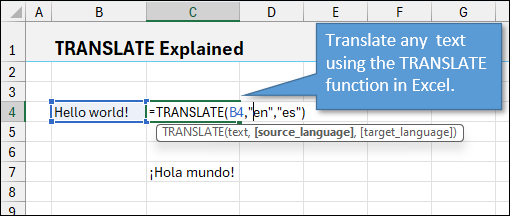
Excel’s TRANSLATE function is a new feature, allowing you to translate text in your reports with ease. Here's how:
This function taps into Microsoft’s translation service, and though it's currently in Beta, it's incredibly effective for multilingual reports.
Creating a Dynamic Report with Language Selection
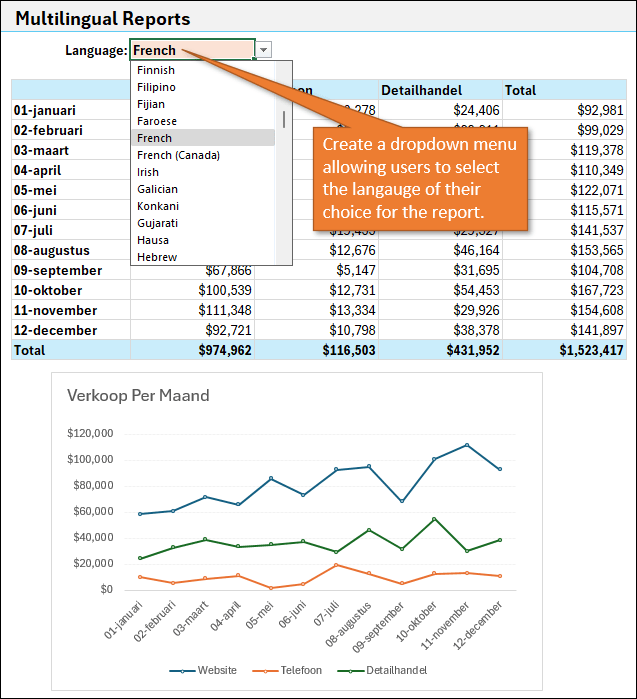
A big part of the magic happens when you allow users to select their desired language via a dropdown menu. Here's how to create that dropdown.
1. Prepare Your Language List:
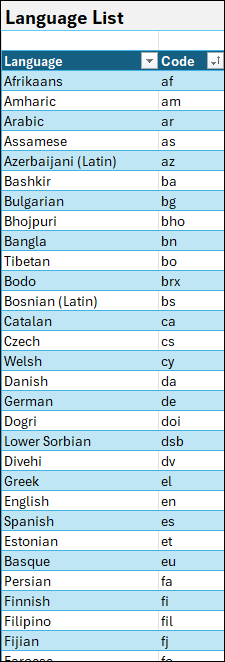
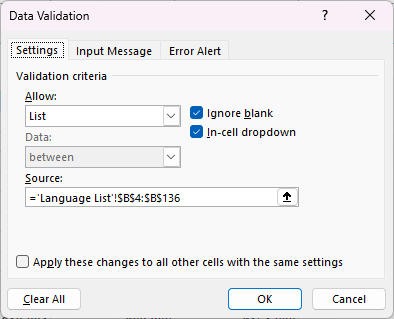
2. Create the Dropdown:
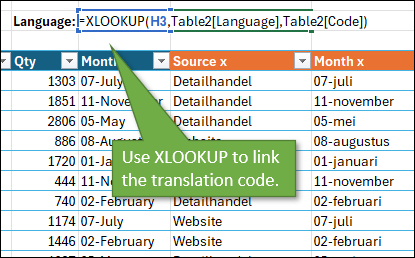
3. Link to the Translation Code:
Optimizing Performance
One challenge with translating large datasets is performance. To optimize your report:
1. Create a Translation Table with unique values instead of translating each cell individually. Follow the steps in the video to create this table using Power Query.
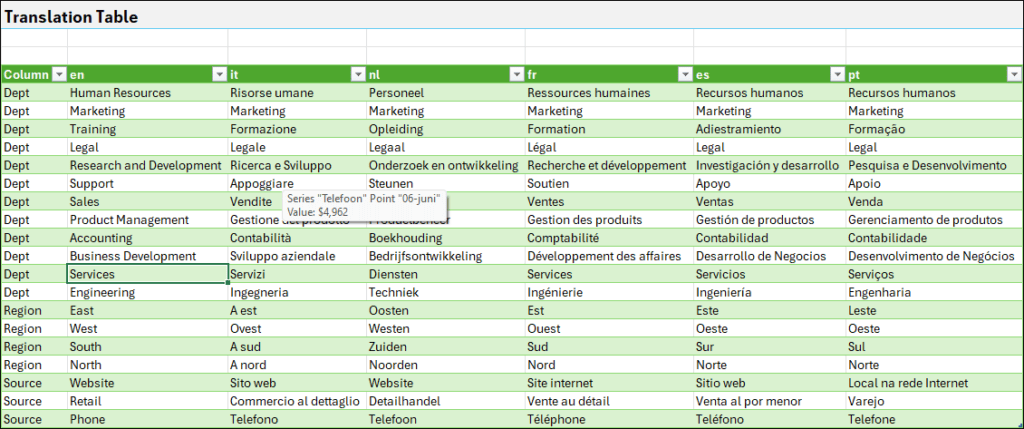
2. Use XLOOKUP twice to reference this table in your Customer Data — first to find the word in the original language, and then to pull the corresponding translation based on the selected language. This method drastically reduces redundant translations and improves efficiency, as it eliminates the need to translate each cell individually. (See the video for a breakdown of the XLOOKUP arguments.)
Offline Translation with XLOOKUP
The TRANSLATE function requires an internet connection, but you can make your reports offline-ready by preloading translations into a lookup table. Simply use XLOOKUP to pull from this static table instead of relying on the translation service.
This technique ensures that your reports function even when offline, making them more versatile.
Bonus: DETECTLANGUAGE Function
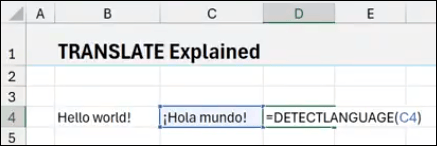
If there is text in a language that you can't identify, you can use the DETECTLANGUAGE function to return the language code. Use your language list to match the code to the language so you can tell what language you are looking at.
Source: excelcampus.com

12/11/2025


